What this page is: a quick tour of everything you can do on myAiSchool — your courses, the AI tutor, practice questions, mock and board exams, the AI Playground, and your dashboard. Each part takes about a minute. Every section has the real link, a picture of the screen, the steps, and a short video. Teachers and principals: your school dashboard has its own guides in Part G (teachers) and Part H (principals).
Part A — Getting started Two minutes, and you are in.
Create your free account
Sign up in a minute and get 50 free AI credits.
Where: myaischool.in/register
- Tap Start Free on the home page.
- Sign up with your email, or tap Continue with Google.
- Add your WhatsApp number. Your login codes and study reminders come here.
- In the setup box, pick your Class, Board, Target exams and a plan. Free is fine to start. Your dashboard opens.
💡 Got a login from your school? You do not need to sign up. Open myaischool.in → Log in, type the login ID (or email) and password your school gave you, and tap Log in. Then check your class and board in Settings (section 20).
Your dashboard
One place that shows your courses, your scores, your streak and your credits.
Where: myaischool.in/dashboard
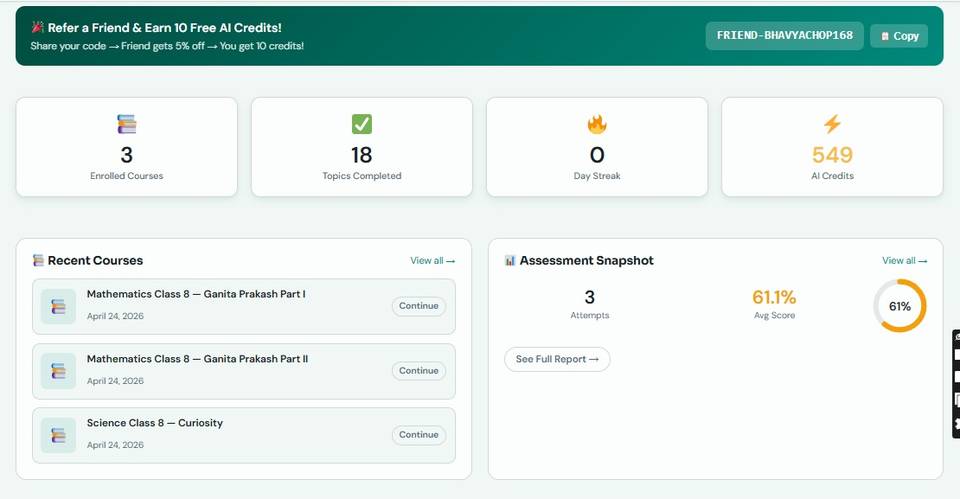
- The four cards at the top: Enrolled Courses, Topics Completed, Day Streak and AI Credits.
- Recent Courses — tap Continue to pick up where you left off.
- Assessment Snapshot — your attempts and your average score. See Full Report opens the details.
- The left menu takes you everywhere: AI Playground, Courses, Assessments, Board Exams, Mock Exams, AI Credits, Notes, Settings.
Part B — Learning Courses, lessons, and your AI tutor on every topic.
Find and start a course
Every NCERT subject for your class, chapter by chapter.
Where: myaischool.in/courses Dashboard → Courses
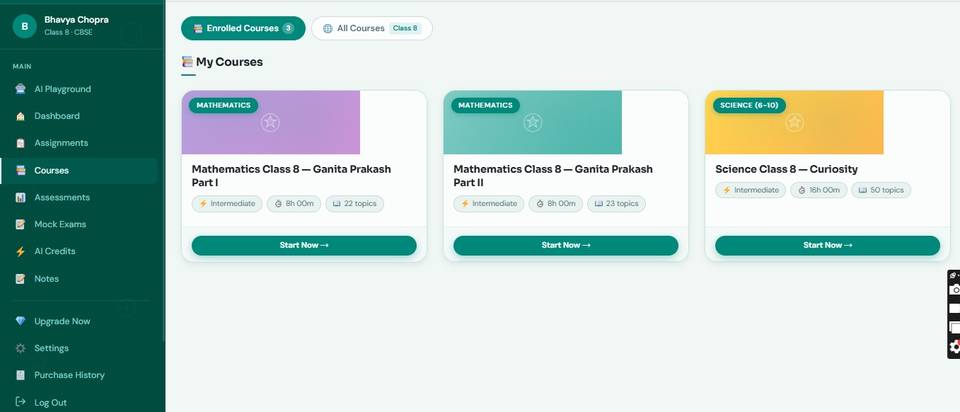
- Open Courses. Use the filters on the left: Board, Class, Subject.
- Open a course to see its chapters and topics.
- Tap Start Now.
- The course now shows under Enrolled Courses in your dashboard, with a progress bar.
Inside a topic
The lesson page: read, practise, mark it done, move to the next topic.
Where: Example topic: Chemical Reactions (Class 10 Science)
- The left panel lists the chapter’s topics. A tick means you have finished it.
- Read the lesson. Want it in Hindi or another language? Use Language at the top.
- Found a live simulation or an interactive figure in the notes? Play with it: drag, slide or change a value and watch what happens. Guess first, then check.
- Scroll down for practice: MCQs, worksheets, and mock exams that match this subject.
- Tap Mark as Complete, then Next topic →.
Ask the AI Tutor (chat)
Stuck at 11 pm? Ask a doubt on any topic and get a step-by-step answer.
Where: The round Gaura button on every topic page
- Tap the round Gaura button at the bottom right of any topic.
- Type your doubt — for example, Explain Newton’s third law with a real example.
- Or tap the mic and say it. Or upload a photo of the question, even handwritten.
- Keep asking. The tutor remembers the topic you are on.
💡 A question costs from about 0.18 credits early in a chat to about 0.33 deep into a long one on a big chapter. Free includes 20 questions; both paid plans are unlimited. Reading the lesson is always free.
1:1 voice talk with your mentor
A live voice conversation with Gaura, your AI mentor — like a one-to-one class.
Where: Any topic → “Talk to Gaura” in the left panel (log in first)
- Open any topic and tap Talk to Gaura.
- Allow the microphone when your browser asks.
- Just speak. Ask, answer, interrupt. Gaura replies in voice and waits for you.
- Tap end when you are done.
💡 Unlimited on both paid plans — it draws on your credits at about 2.86 a minute, so 1,499 credits is roughly 520 minutes. Free includes 10 minutes.
Watch the Explainer video
A short narrated video lesson of the topic, in 22 Indian languages.
Where: Any topic → “Watch Explainer” 🎬 in the left panel (shows on topics that have one)
- Tap Watch Explainer.
- Pick your language.
- Watch the two-to-three-minute lesson. A quick quiz pauses it in the middle.
- Close it and carry on with the topic.
Take notes
Highlight any line in a lesson and save it as your own note.
Where: Any topic → “Take Notes” Dashboard → Notes
- Select some text in a topic.
- Tap Take Notes and add your own comment.
- Open Dashboard → Notes. Your notes are grouped by course.
- Go to Topic → jumps back to that line. Delete removes a note.
Part C — Practice and tests Fresh questions, instant marks, real exam practice.
Practise a topic: MCQs, worksheets, English tasks
Fresh AI questions on the exact topic, marked instantly, with the reason for every mark.
Where: Bottom of every topic page
- Scroll below the lesson to the practice section.
- Open AI-Powered MCQ Assessment. Maths and Physics topics also have a Maths Assessment. English topics have Grammar, Vocabulary, Writing and Comprehension.
- Tap Generate, answer, then Submit.
- Read the feedback: what was right, what you missed, what to revise next. Generate again for a new set — questions never repeat.
💡 Free includes 10 MCQ quizzes and 5 subject assessments. Both paid plans are unlimited.
Your assessment reports
See which topics are strong, which need work, and what the AI suggests next.
Where: Dashboard → Assessments
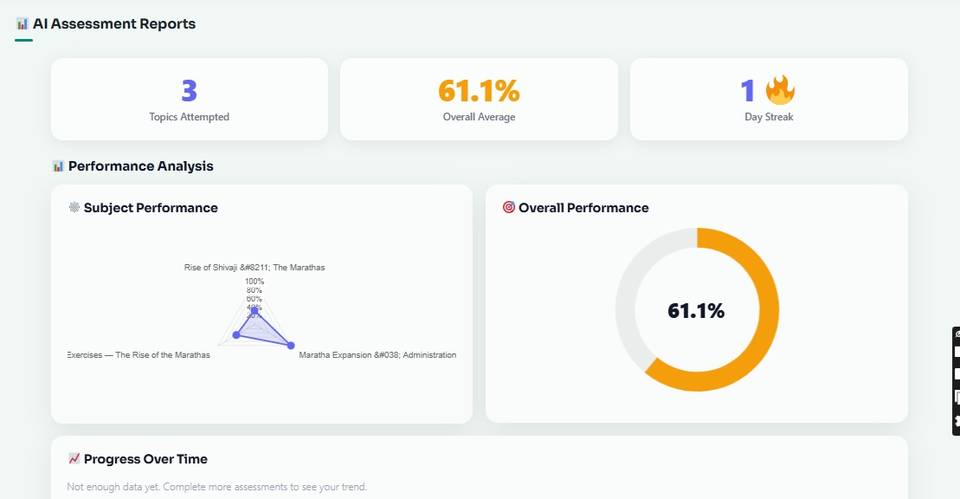
- Top cards: topics attempted, overall average, day streak.
- Subject Performance and Overall Performance charts.
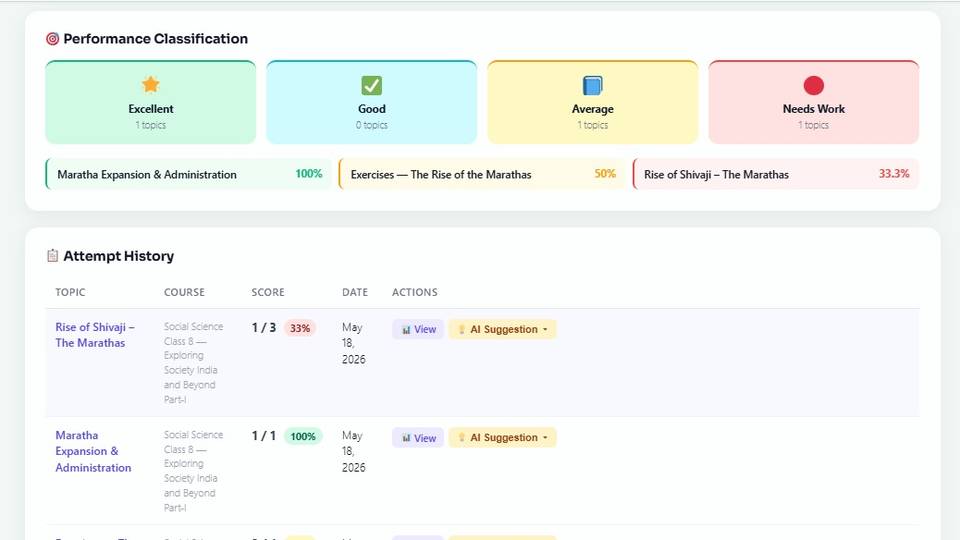
- Performance Classification: Excellent, Good, Average, Needs Work — topic by topic.
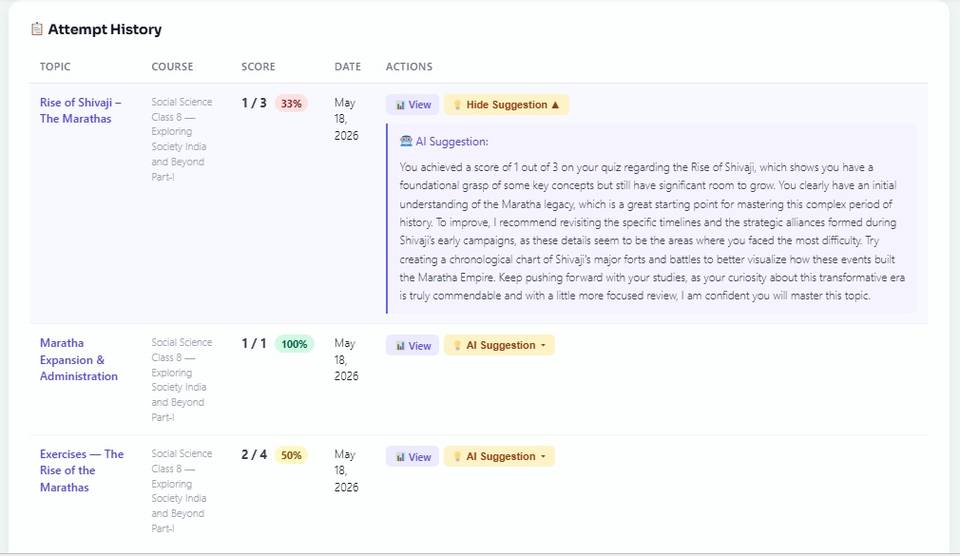
- Attempt History: tap View to see an attempt, or AI Suggestion for a short personal tip on what to revise.
Mock exams
A real exam-hall test: timer, question palette, fresh questions every attempt.
Where: myaischool.in/mock-exams Dashboard → Mock Exams
- Pick an exam — JEE Main, Olympiad, chapter tests and more.
- Read the pattern and tap Start.
- Answer, Mark for review, jump to any question with the palette. The timer runs at the top. Closing the tab does not lose your paper.
- Submit, or it submits itself at 0:00. You get your score and an explanation for every question. The Mock Exams tab keeps your score trend.
💡 How many you get: 2 on Free, 5 on Basic, unlimited on AI Plus. Olympiad and JEE/NEET difficulty is an AI Plus feature.
Board exam sample papers
Sit the real CBSE sample paper for three hours and get it marked the way an examiner marks it.
Where: myaischool.in/board-exams Dashboard → Board Exams
- Open your subject’s paper and tap Start. The three-hour clock runs on our side, so changing device or closing the tab is safe.
- Answer each question by typing, speaking, or photographing the page you wrote. Diagrams get marks too.
- Wrote the whole paper on paper? Upload your scanned answer sheet at the top, all pages at once.
- Submit. Every question is marked against the official marking scheme, with the examiner’s notes.
💡 How many you get: 2 papers marked on Free, 5 on Basic, unlimited on AI Plus — this is the main reason to be on AI Plus. You can also print the paper, write on paper, and scan it back in.
Free Score Map
A free 15-minute test that tells you which chapters are costing you marks.
Where: myaischool.in/score-map
- Choose your class and subject.
- Answer the 15-minute diagnostic.
- Get your chapter-wise map: the chapters to fix first.
- Jump straight into those chapters.
Part D — AI Playground Notes, diagrams, explanations — on any topic you type.
AI Playground
Type any topic and let the AI make notes, explanations, diagrams and more.
Where: Dashboard → AI Playground Or the Playground button inside any topic
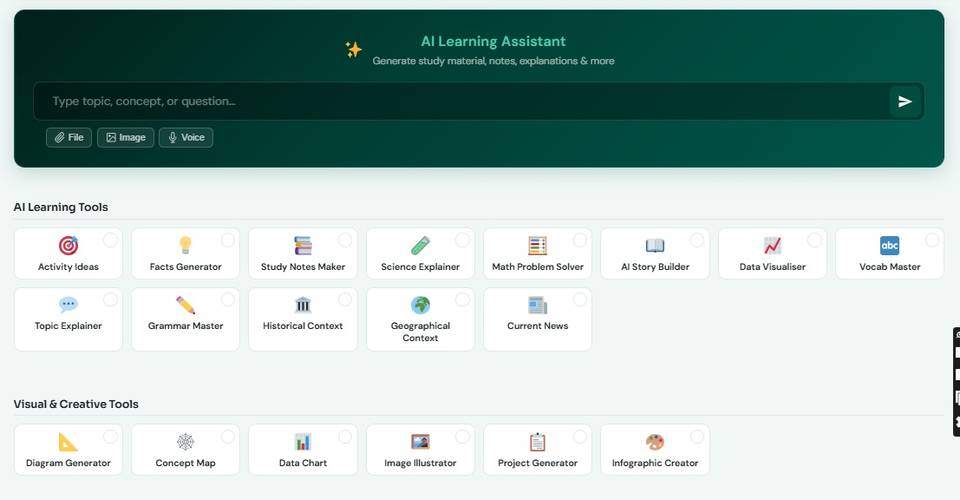
- Type a topic, concept or question in the AI Learning Assistant box. You can also attach a File or Image, or use Voice.
- Pick a tool: Study Notes Maker, Math Problem Solver, Topic Explainer, Science Explainer, Vocab Master, Grammar Master, Facts Generator, AI Story Builder, Activity Ideas, Historical Context, Geographical Context, Current News, Data Visualiser.
- Visual tools: Diagram Generator, Concept Map, Data Chart, Image Illustrator, Project Generator, Infographic Creator.
- Copy or download what you get. Inside a topic, the Playground already knows that topic’s content.
💡 Results live in this session only — copy what you want to keep. Each tool uses AI credits.
Part E — Progress and rewards Points, levels, streaks, and homework from your teacher.
Performance: points, level, rank
Every topic, quiz and exam earns points. Level up and see your rank.
Where: Dashboard → Performance
- Total Points, Level and Global Rank at the top.
- The level bar shows how many points you need for the next level.
- Filter Total Tasks and Points Scored by date and subject.
- The Rewards wall shows the badges you have unlocked. Your Day Streak grows every day you finish at least one activity.
Assignments from your teacher
If your school or tutor is on myAiSchool, their homework lands here.
Where: Dashboard → Assignments
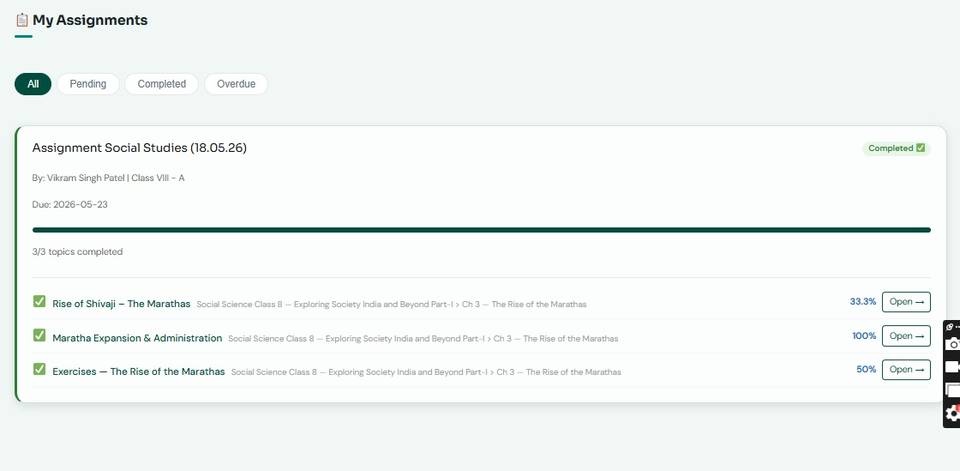
- Filter All / Pending / Completed / Overdue.
- Open an assignment to see its topics and the due date.
- Open → a topic and finish its assessment. The progress bar fills up.
- Teaching Material tab: worksheets and tests your teacher attached — view, download, submit, see results.
💡 Only for students who joined a school with a class code (see Settings).
Part F — Credits, plans and your account How credits work, how to upgrade, how to change your details.
AI Credits
Credits are what AI features use. You start with 50 free.
Where: Dashboard → AI Credits
- See your Available AI Credits. The balance also shows in the left menu.
- Usage History shows what used them: MCQs, tutor questions, playground tools.
- Buy More Credits opens the plans.
- Earn extra: refer a friend, keep your streak going.
How credits are worked out. AI is billed by tokens — roughly ¾ of a word, counting both what we send the AI (your lesson and the question) and what it writes back. One credit is ₹1, and credits never expire.
Two limits, whichever comes first. Your credit balance, and a limit on how many of each thing your plan includes. Board papers and mock exams are the ones that matter: Free and Basic get a set number to try, AI Plus has no limit.
| What you do | Credits | Free | Basic | AI Plus |
|---|---|---|---|---|
| Ask Gaura a question (chat) 0.18 early in a chat, up to 0.33 deep into a long one |
0.22 | 20 | 4,400 | 7,400 |
| MCQ quiz — 10 questions + explanations | 0.39 | 10 | 3,000 | 5,100 |
| Full assessment — generated and marked maths accepts a photo of your handwritten answer, 0.60 |
0.47 | 5 | 2,300 | 3,800 |
| Board paper marked from a PDF | 1.31 | 2 | 5 | 1,500 |
| Mock exam from a blueprint (~30 Q) | 2.05 | 2 | 5 | 900 |
| Olympiad, JEE and NEET level questions competitive-exam difficulty in maths assessments |
— | — | — | Included |
| 1:1 voice talk with your mentor — per minute no limit on paid plans; these are what your credits stretch to |
2.86 | 10 min | 410 min | 690 min |
Why a tutor question is not always the same price. The whole lesson and the conversation so far go to the AI on every turn, so question 20 of a long chat on a big chapter costs about twice question 1 of a short one. The counts above are sized to hold even in that case, so most students get more.
The free plan’s 50 credits do not stretch to every limit at once — spend them on whatever you want to try. Longer chapters cost a little more, shorter ones less: the whole lesson goes to the AI so its questions cover the full chapter, not just the first page.
Running low? Top up any amount from 100 credits at ₹1 each — your plan and its limits stay as they are. And upgrading from Basic to AI Plus costs only the difference: the credits still in your balance come off the price.
Reading lessons and browsing courses never uses credits.
Plans and upgrading
Free to start. Basic is ₹1,499 for 1,499 credits. AI Plus is ₹2,499 for 2,499 credits, and is the only plan with unlimited board papers and mock exams. One credit is ₹1, credits never expire, and upgrading costs only the difference.
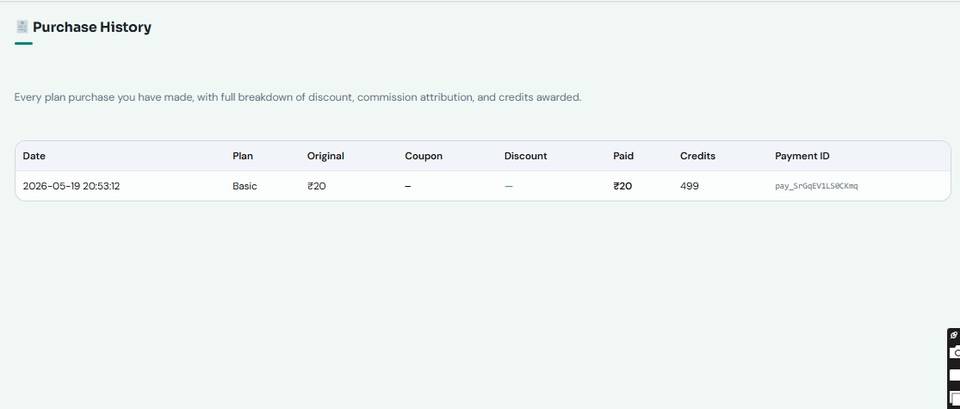
Where: myaischool.in/plans Dashboard → Upgrade Now Purchase History
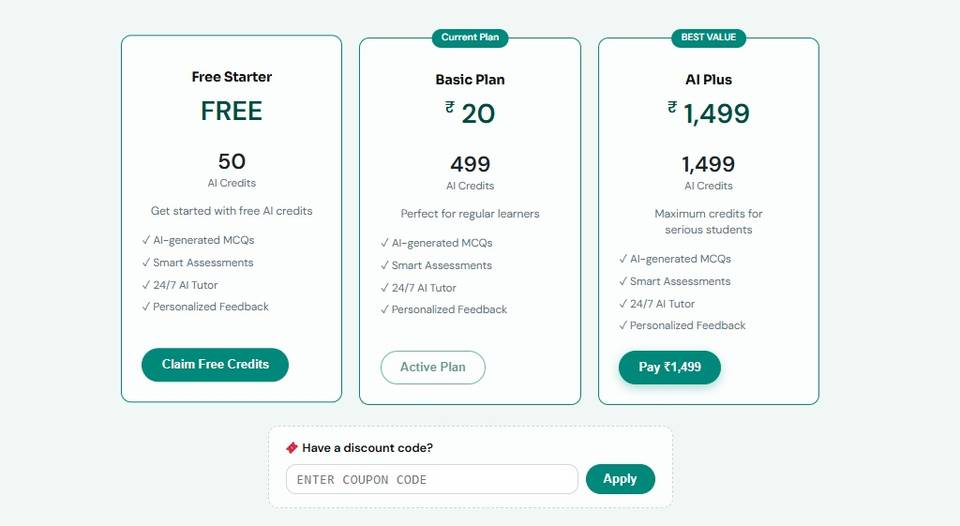
- Compare the three plan cards, and check the What your credits buy table below them to see how many quizzes, assessments, mock exams and voice minutes each plan gives.
- Have a code from a friend, teacher or school? Enter it under Have a discount code? and tap Apply.
- Tap Pay. UPI, card, net banking and wallets all work.
- Credits land instantly. Purchase History keeps every receipt.
What actually separates the plans. Quizzes, assessments and the AI Tutor are unlimited on both paid plans — what you are really choosing between is board-exam marking, mock exams and Olympiad-level questions:
| Free | Basic ₹1,499 | AI Plus ₹2,499 | |
|---|---|---|---|
| MCQ quizzes · assessments · AI Tutor | 10 · 5 · 20 | Unlimited | Unlimited |
| Maths marked from your handwritten photo | ✓ | ✓ | ✓ |
| Board papers marked | 2 | 5 | Unlimited |
| Timed mock exams (test prep) | 2 | 5 | Unlimited |
| Olympiad, JEE and NEET difficulty | — | — | Included |
| 1:1 voice talk with your mentor | 10 min | Unlimited | Unlimited |
Already on Basic? Upgrading is not buying a plan twice. The credits still in your balance come off the price, so an unused Basic pays ₹1,000, not ₹2,499 — and you land on a full AI Plus balance. The AI Plus button shows your own price.
Just need a few more credits? Top up any amount from 100 credits at ₹1 each. Your plan and its limits stay exactly as they are.
Refer a friend
Share your code. Your friend gets a discount, you get 10 free credits.
Where: The green banner at the top of your dashboard
- Tap Copy next to your FRIEND-… code.
- Send it to a friend on WhatsApp.
- Your friend enters it when they pay for a plan.
- You get 10 credits as soon as they pay.
Settings and your school
Your name, class, board, target exams and school — change them any time.
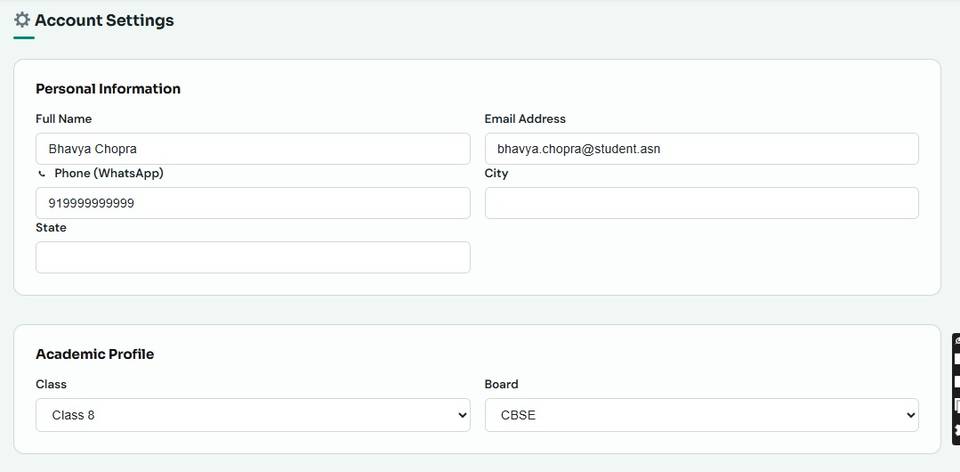
Where: Dashboard → Settings
- Personal Information: name, email, WhatsApp number, city, state.
- Academic Profile: class and board. This decides which courses and papers you see.
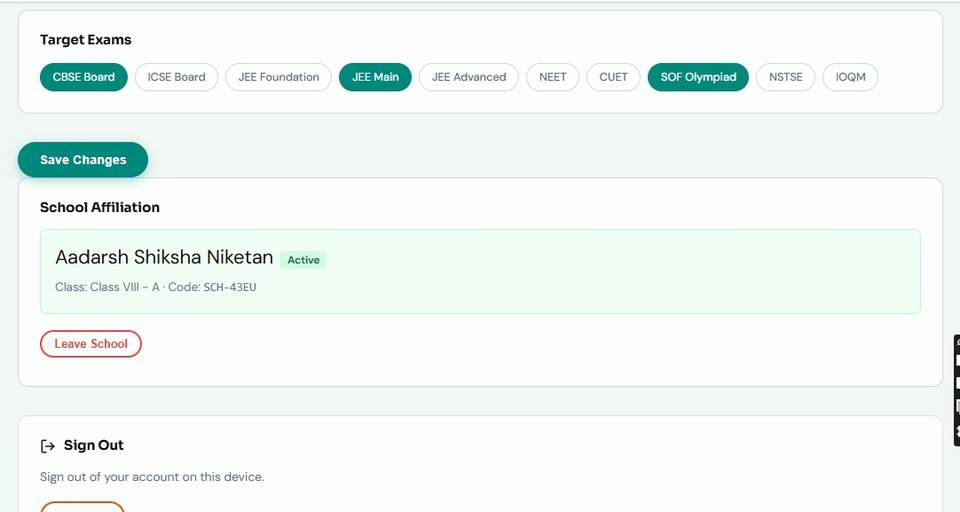
- Target Exams: tap to select the ones you are preparing for.
- School Affiliation: if you joined with a class code, your school and section show here. Tap Save Changes when done.
💡 Joining your class: under School Affiliation, type the class code your teacher gave you (it looks like SCH-XXXX) and tap Link. Your teacher approves you, and your class’s courses then appear under Courses. Homework from your teacher shows in Assignments (section 16).
💡 Forgot your password? Use Forgot password on the login page — a code comes to your WhatsApp.
Part G — For teachers Your school dashboard: approvals, teaching with simulations, Classroom Mode, assignments, TLM and statistics.
Log in to your school dashboard
Teachers and principals sign in at the Staff Portal, not the student login page.
Where: myaischool.in/staff-login
- Open myaischool.in/staff-login. The Staff Portal has three tabs: Sign In, Register and Class Login.
- On Sign In, type the email and password your school or pilot coordinator gave you, and tap Sign In.
- Your School Dashboard opens. The left menu: Overview, Approvals, Students, Assignments, Statistics, Teaching Learning Material (TLM), AI Playground, Course View and Course Dashboard.
- New and no account yet? On Register, fill in your details, the School Code from your school admin, and choose Teacher under Your Role. Your school admin approves you before the dashboard opens.
Overview: your classes at a glance
The first screen after you sign in: four numbers and a card for each section you teach.
Where: School Dashboard → Overview
- The top cards: Assigned Sections, Active Students, Pending Approvals and Avg Topics/Student.
- My Classes: one card per section with its students, subject, linked courses and class code. Tap the code to copy it.
- Share the class code with that section’s students. They type it in their Settings → School Affiliation.
- A number next to pending means students are waiting for you: open Approvals.
Approve your students
Students join your section with its class code. You let them in.
Where: School Dashboard → Approvals
- Open Approvals. Student Approvals lists everyone who used your class code.
- Tick the students who belong to the section.
- Tap Approve Selected.
- Approved students are enrolled in every course of their class, and their work starts showing in Students and Statistics.
Your students
Every student’s progress in one table, section by section.
Where: School Dashboard → Students
- Choose the section in Select Class.
- My Students shows each student’s courses, progress, topics done, assessments and average score.
- Look before a lesson: who is behind, who has not started, who is ready for more.
- Want the student’s own view? Use Course Dashboard → Students (see Classroom Mode, T6).
Teach with simulations and interactive figures
Put the lesson on the projector or smart board and let the class see the idea move.
Where: School Dashboard → Course View myaischool.in/courses
- Course View: choose your section to see its courses, chapters and topics in order. Plan the lesson from here.
- On the class screen, open the topic from Course Dashboard → Courses, or from myaischool.in/courses.
- In the notes, use the live simulation or interactive figure: ask the class to predict, change one value, then show what happens.
- Switch the lesson Language at the top if the class needs it, and open Gaura to answer a doubt in front of everyone.
💡 Not every topic has a simulation. Open the topic the day before and check.
Classroom Mode: one screen, every student’s own attempt
Run a quiz on the class screen. Each attempt is saved, marked and reported in that student’s own account.
Where: Any topic page, signed in as a teacher
- Signed in, open the topic. The bar under the top bar reads Classroom · Pick a student to begin, with your section’s students listed first.
- Pick the student in Select a student (type a name to filter). The page now runs as that student and shows their progress.
- The student attempts the topic’s MCQ, worksheet or assessment on the screen — typed, clicked, spoken or photographed. It lands in their account, the same one they open at home.
- Pick the next student; nobody logs out. Done returns to your own view with the section still open. Exit ends Classroom Mode on that device.
💡 The dashboard’s Students tab (Course Dashboard) shows every student of your sections as a card with rank, level, topics, average score and streak — tap a card to act as that student. While a student is picked, their account, password and payment settings are locked on that screen.
Class Login for a shared classroom screen
Sign the classroom computer in with the section code and a PIN, so your own password never goes on a shared screen.
Where: myaischool.in/staff-login → Class Login
- Get the section’s Class PIN from your principal (they set it under Sections).
- On the classroom computer, open myaischool.in/staff-login → Class Login. Type the Section code (SCH-XXXX) and Class PIN, then tap Open Classroom.
- Choose yourself under Pick the teacher, so the period is recorded under your name. Then pick students exactly as in Classroom Mode (T6).
- The class login opens only its own section and cannot change any account or payment. Tap Exit when the period ends.
💡 Five wrong PINs lock that section code for 15 minutes.
Assignments: homework with a due date
Give a section topics to finish by a date, and see who has done them.
Where: School Dashboard → Assignments
- Self Assessment tab: choose the class in Select Class and tap New Assignment.
- Type a Title, set the Due Date, tick the topics under Select Topics, and tap Create Assignment. Students see it under Dashboard → Assignments.
- Teacher Assignments (TLM) tab: pick a class and assign material you published in TLM (T9), with an optional due date. Currently assigned to this class lists what is out.
- Submitted Assignments: filter by class and status — Awaiting, AI proposed, Evaluated — and review each student’s work.
Teaching Learning Material (TLM)
Worksheets, tests and activities built from the exact topics you teach — then save, print or publish them.
Where: School Dashboard → Teaching Learning Material (TLM)
- Create tab: choose the Material type, Board, Class / Section, Course and Chapter.
- Set the Medium (English, Hindi or Bilingual), the Bloom level (Remember to Create) and Differentiation (Advanced, On-grade, Foundational).
- Under Ground on topic(s), tick one or more topics — the material is built from them. Add an instruction or reference material if you like, and tap Generate.
- Give it a Title, then Save to Library, Publish, Print / Save PDF or Copy. My Library keeps drafts, published and archived material; Submissions shows students’ answers to review.
💡 TLM uses AI credits; your balance shows at the top of the tab.
Statistics: what to re-teach
Course completion for a section and every student’s scores, on one screen.
Where: School Dashboard → Statistics
- Choose the section in Select Class.
- Course Performance: for each course, how many students are enrolled, have completed it and are in progress.
- The student table: topics done, assessments taken and average score, colour-coded so low scores stand out.
- Pick the topic most students are weak in, re-teach it with its simulation, then assign it (T8).
AI Playground for lesson preparation
An AI content generator for teachers: notes, activities, diagrams and more, set to your class and chapter.
Where: School Dashboard → AI Playground
- Set Context: class, subject, chapter, medium, Bloom level, differentiation and board.
- Type a topic or prompt in the AI Content Generator box — or attach a File or Image, or use Voice.
- Pick a tool from Creator Tools (for Teachers), Student Learning Tools or Visual & Creative Tools, and tap Generate AI Content.
- Share it on WhatsApp, Copy it, or Print / Save PDF.
💡 Each tool uses AI credits.
Part H — For principals The whole school on one screen: sections, class codes, Class PINs, teachers, students and analytics.
Log in as principal
Principals sign in at the Staff Portal and land on the School Dashboard.
Where: myaischool.in/staff-login
- Open myaischool.in/staff-login and stay on Sign In.
- Type the email and password your school admin or pilot coordinator gave you, and tap Sign In.
- Your School Dashboard opens: Overview, Sections, Teachers, Students, Analytics and Course Dashboard.
- No account yet? Register with your details, the School Code from your school admin and Principal under Your Role. The school admin approves the account.
Overview: the school in four numbers
The first screen after you sign in.
Where: School Dashboard → Overview
- Sections Managed — the pilot sections under you.
- Active Teachers — teachers working in those sections.
- Total Students — students who have joined.
- Pending Students — students who used a class code and are waiting for their teacher’s approval. A number here that does not fall means a teacher needs a reminder.
Sections, class codes and teachers
Every section with its courses, class code, students and teachers — and the place to assign teachers.
Where: School Dashboard → Sections
- My Sections lists each section with its Linked Courses, Code, number of Students and Teachers.
- Tap a Code to copy it and share it with that section’s students.
- + Assign Teacher: choose a teacher and, if you like, the subject. The × next to a teacher’s name removes them from the section.
- Sections are created by your school admin. If one is missing, ask them to add it.
Set a Class PIN for a classroom screen
Lets a shared classroom computer run Classroom Mode for one section without any teacher’s password.
Where: School Dashboard → Sections → Set Class PIN
- In Sections, tap 🔑 Set Class PIN on the section.
- Enter a PIN of 4 to 8 digits and save.
- Give the section code and PIN to that section’s teachers. On the classroom computer they open /staff-login/ → Class Login (see T7).
- To change it, tap 🔑 Class PIN again. A new PIN, or Remove class login, ends any classroom session open on that device.
Teachers
Who teaches which section.
Where: School Dashboard → Teachers
- My Teachers lists every teacher with their Email and Assigned Sections.
- A section with no teacher? Assign one from Sections (P3).
- A teacher missing from the list? They register at the Staff Portal with your school code and are approved by the school admin (T1).
Students
Each student’s progress, section by section and course by course.
Where: School Dashboard → Students
- Choose a section in Select Section — each shows how many students it has.
- Select a Course to see that course’s student progress.
- Each row: the student’s enrolment, progress, topics done, assessments and average score.
- Use it in academic reviews and parent-teacher meetings.
Analytics
One section at a time: how many are active, how much they have done, how the courses are going.
Where: School Dashboard → Analytics
- Pick a section in Select Section.
- Four cards: Students, Active (7d) — students active in the last seven days —, Topics Done and Avg Streak.
- Course Performance: for each course, enrolled, completed and in progress.
- A low Active (7d) number is the first thing to raise with the section’s teacher.
See what your students see
Open the student side of myAiSchool to judge the lessons yourself.
Where: School Dashboard → Course Dashboard
- Tap Course Dashboard in the left menu.
- Open a course and a topic: read the notes, try the simulation, ask Gaura a question and generate a practice quiz.
- The Students tab there shows every student of your school’s sections as a card. You can run Classroom Mode for any section of your school (T6).
- Come back to the School Dashboard from the menu.
Quick answers for schools
What principals and teachers ask most in the first week.
Do teachers and principals use the student login?
No. Staff sign in at myaischool.in/staff-login with their email. Students log in at myaischool.in → Log in.
Who creates sections and class codes?
The school admin creates the sections; each section gets its own class code (SCH-XXXX). The principal assigns teachers to sections, and teachers approve the students who join.
Does work done in class count for the student at home?
Yes. In Classroom Mode every attempt is saved in the student’s own account, so it shows on their dashboard at home and in your reports.
Can a classroom screen change a student’s account or make a payment?
No. While a student is picked, account, password, plan and payment changes are blocked, and a class login can only open its own section.
Where do we get help?
WhatsApp +91 87995 34194 (9 AM–6 PM) or write to hi@myaischool.in. During a pilot, your pilot coordinator is the first call.
Quick questions The five things students ask most.
Is it really free to start?
Yes. You get 50 AI credits when you sign up. No card needed.
What uses credits?
AI features: tutor questions, generated MCQs and worksheets, playground tools, and exam marking. Reading lessons and browsing courses is always free.
What is the difference between Basic and AI Plus?
Quizzes, assessments, the AI Tutor and 1:1 voice are unlimited on both. AI Plus adds unlimited board-paper marking, unlimited timed mock exams, and Olympiad, JEE and NEET level questions. Basic includes 5 board papers and 5 mock exams.
If I upgrade, do I lose the credits I already paid for?
No. Upgrading from Basic to AI Plus costs only the difference — the credits still in your balance come off the price, and you land on a full AI Plus balance.
Does the AI tutor understand Hindi?
Yes. Ask in the language you are comfortable in. Topic pages also have a language switch at the top.
Will I lose my exam if the internet drops?
No. Mock exams and board papers save as you go, and the clock runs on our side. Reopen the page and continue.
Where do I get help?
Tap Contact Us at the bottom of any page to message us on WhatsApp.
Ready to try it yourself? Everything on this page is free to start — 50 AI credits, no card needed.